These are the steps to creating a new report. For this example, we’ll create a report about video starts by using Video Title and Events. Different reports will use different dimensions, metrics and filters:
https://app.screencast.com/KQwbmWLYwHKNn
Step 1
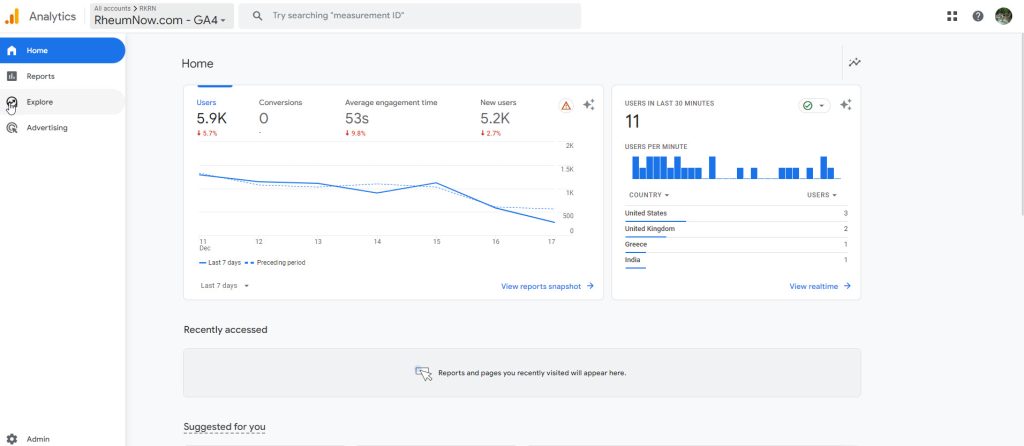
Go to Google Analytics > Go to Rheumnow.com – GA4 account > click Explore.
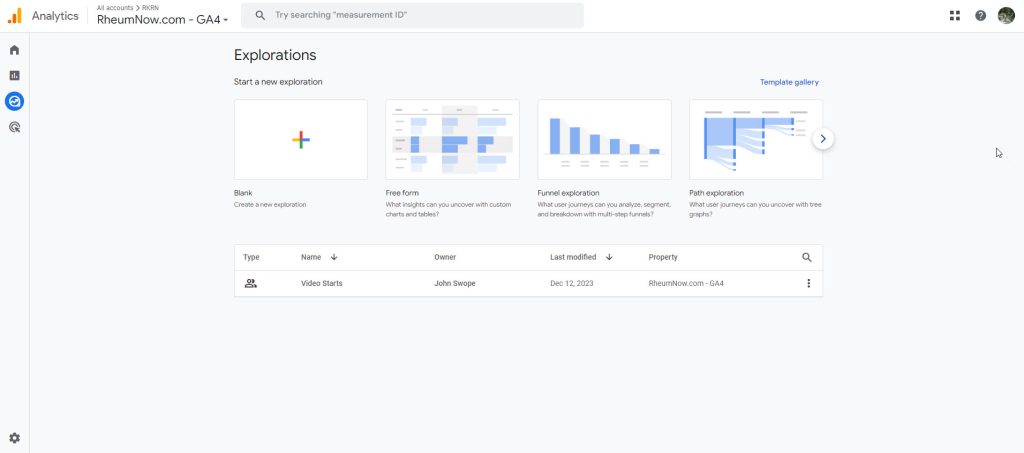
You will see all the reports that you’ve made and you’re shared with.
Step 2
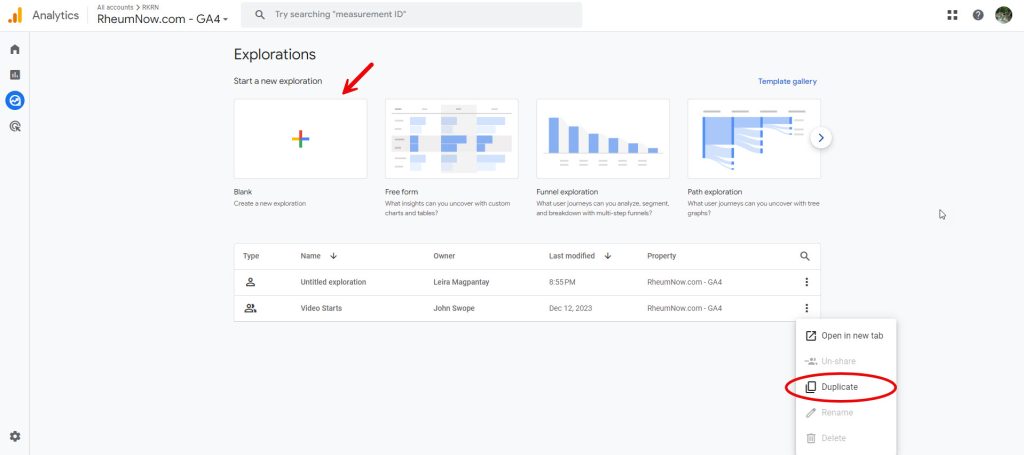
To create a new exploration, you can either duplicate the old report or start a new exploration.
Step 3
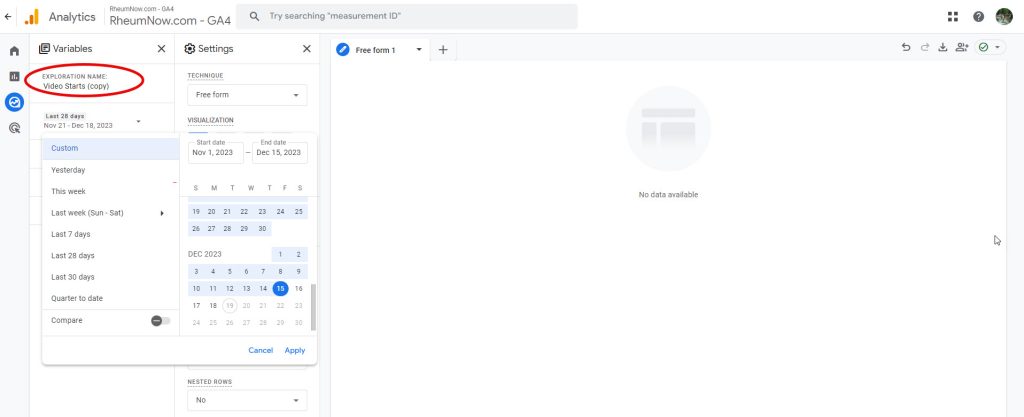
Add the Title/Exploration Name.
Step 4
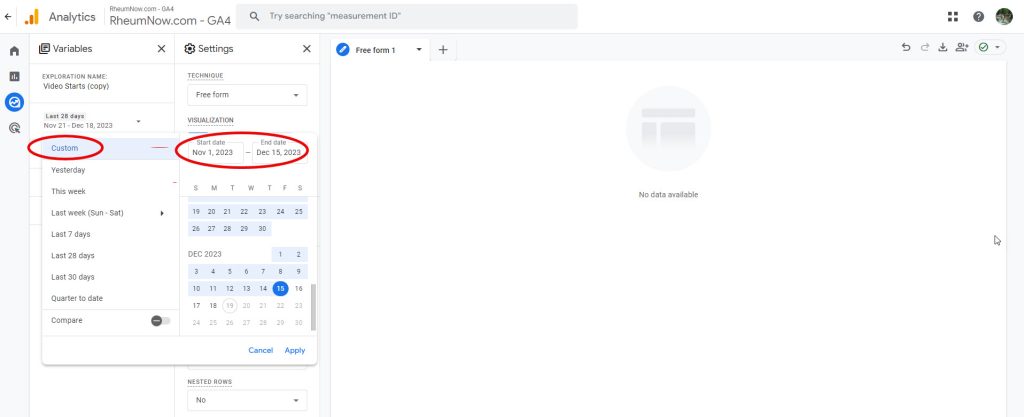
Put in the time frame by clicking Custom date.
Step 5
Add Dimensions.
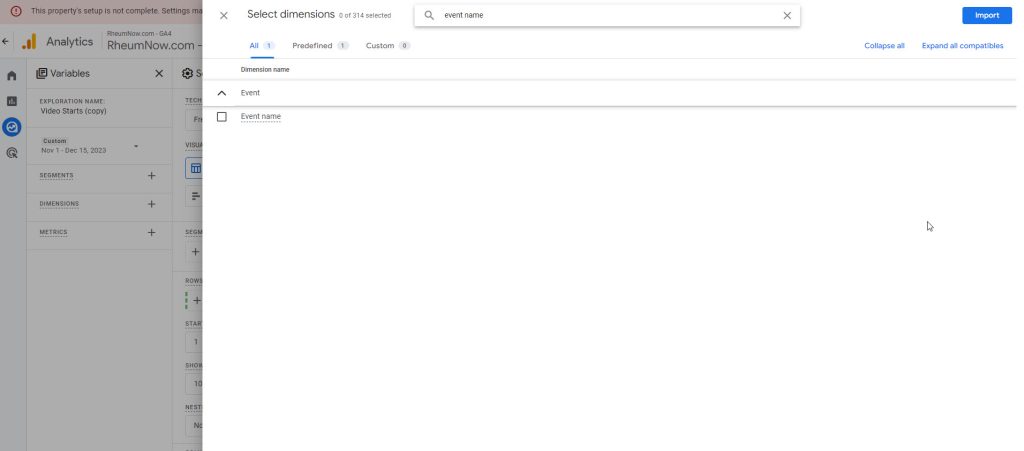
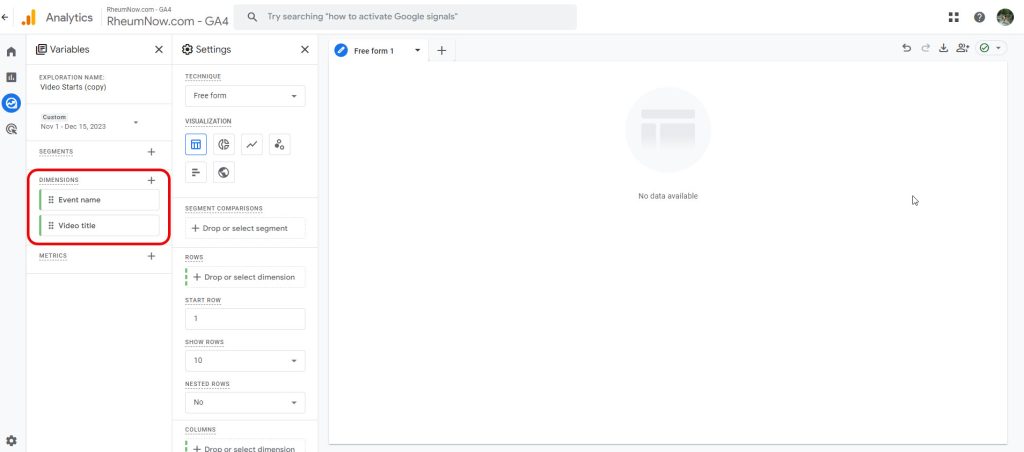
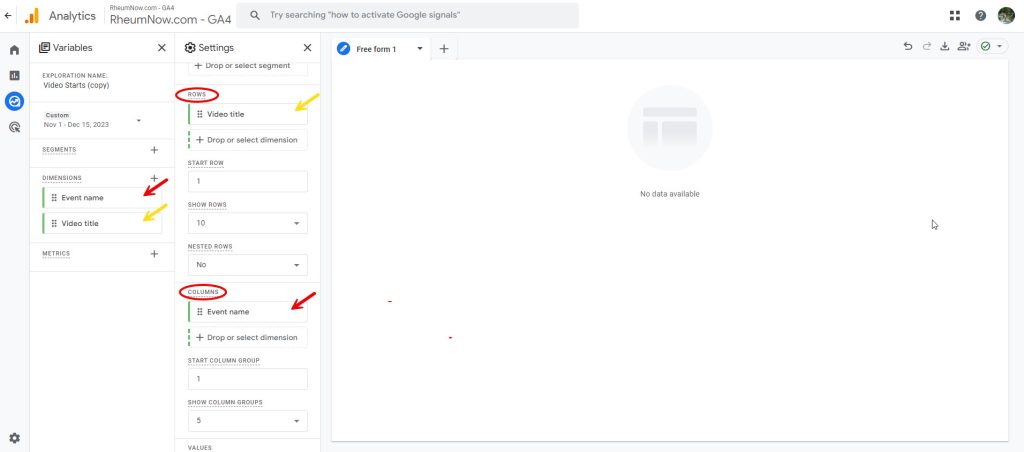
Drag Dimensions to where you want to set it.
Step 6
Add Metrics.
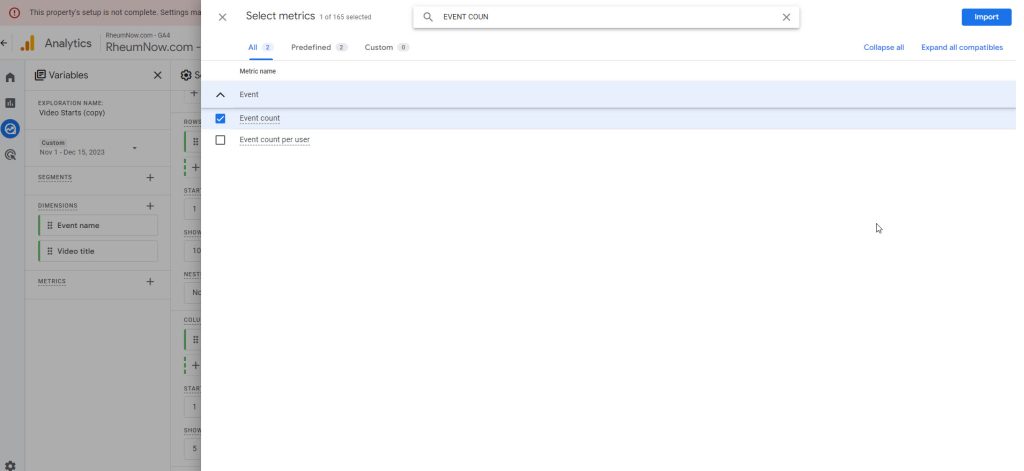
Drag the Metrics you want into Values to add it to the report.
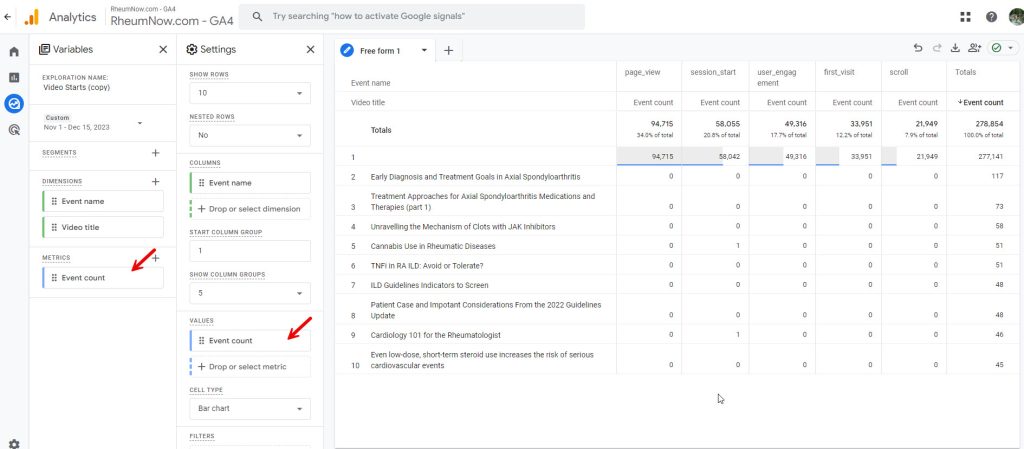
Step 7
You can filter your dimensions, for example to filter your Event name to only include “video_start”.
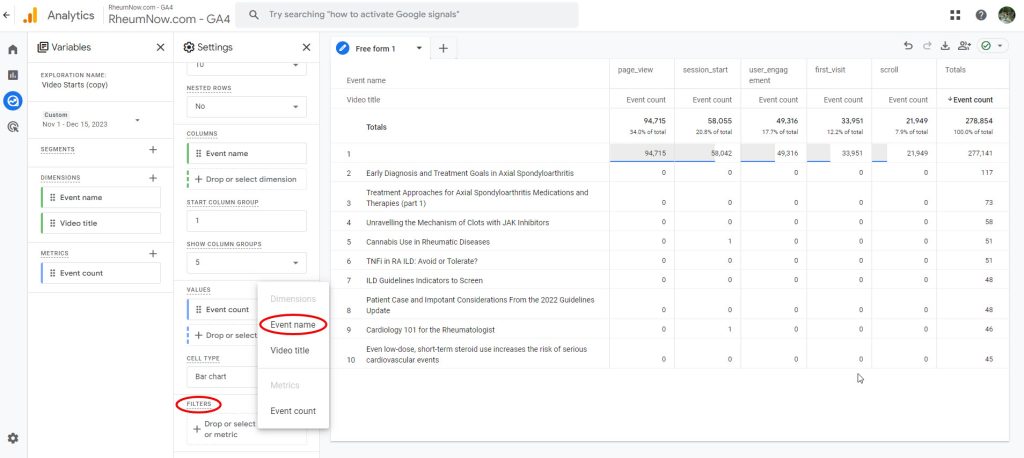
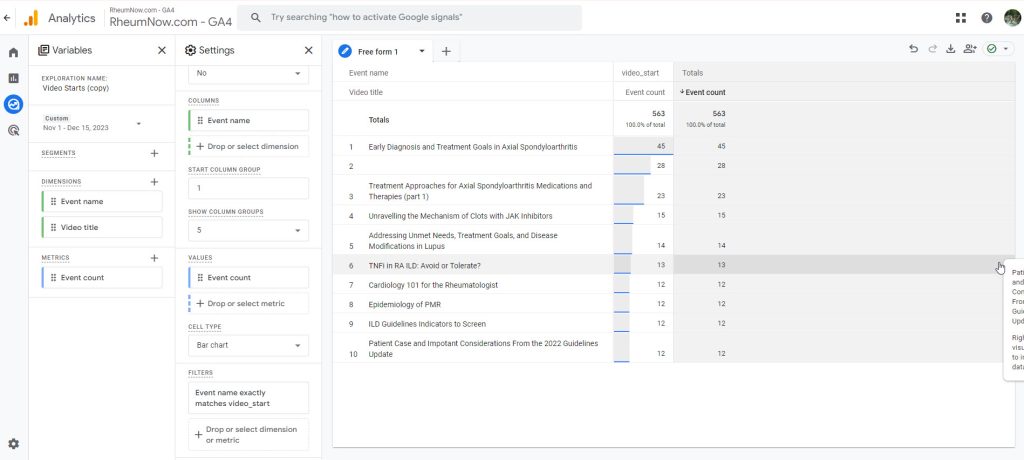
That will give you all the starts for those videos in that particular time frame.
Step 8
You can show more rows if you wanted more.
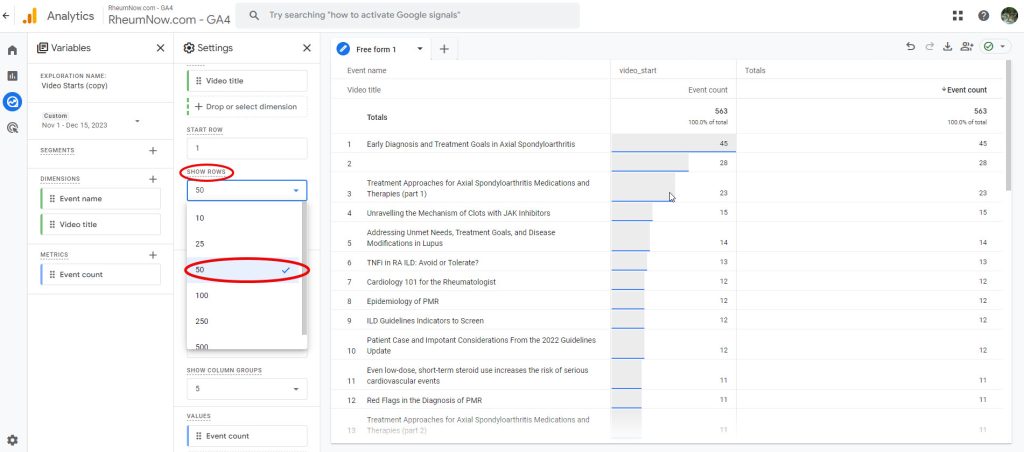
Note: The only limit is that you have to figure out something that is common between all the video types.